%20suggest%20a%20game%20in%20play.%20Palette%20matches%20the%20product%20design%20tokens:%20sky%20500/600%20(%234E97CC/%2335789F),%20sky%20700%20(%232C617F),%20apricot%20accent%20(%23E8935E),%20warm%20white%20(%23FDFCF8).%20--%3e%3cdefs%3e%3clinearGradient%20id='bgc-table-top'%20x1='32'%20y1='6'%20x2='32'%20y2='58'%20gradientUnits='userSpaceOnUse'%3e%3cstop%20offset='0'%20stop-color='%234E97CC'/%3e%3cstop%20offset='1'%20stop-color='%2335789F'/%3e%3c/linearGradient%3e%3c/defs%3e%3c!--%20table%20depth%20--%3e%3crect%20x='13'%20y='17'%20width='38'%20height='38'%20rx='9'%20transform='rotate(45%2032%2036)'%20fill='%232C617F'/%3e%3c!--%20tabletop%20--%3e%3crect%20x='13'%20y='13'%20width='38'%20height='38'%20rx='9'%20transform='rotate(45%2032%2032)'%20fill='url(%23bgc-table-top)'/%3e%3c!--%20token%20pips%20--%3e%3ccircle%20cx='32'%20cy='23.5'%20r='5'%20fill='%23E8935E'/%3e%3ccircle%20cx='23.5'%20cy='35'%20r='5'%20fill='%23FDFCF8'/%3e%3ccircle%20cx='40.5'%20cy='35'%20r='5'%20fill='%23FDFCF8'/%3e%3c/svg%3e)
Multiplayer
Create a room from your saved table, share the room code, and playtest together in real time — every card move syncs to all players instantly.
Before you start
A multiplayer room loads a saved table setup. Make sure you've set up your table in the simulator and clicked Save first.
Create a room
- In Projects, click Playtest Lobby on your game card. This takes you to the Playtest Lobby.
- Click Create Room.
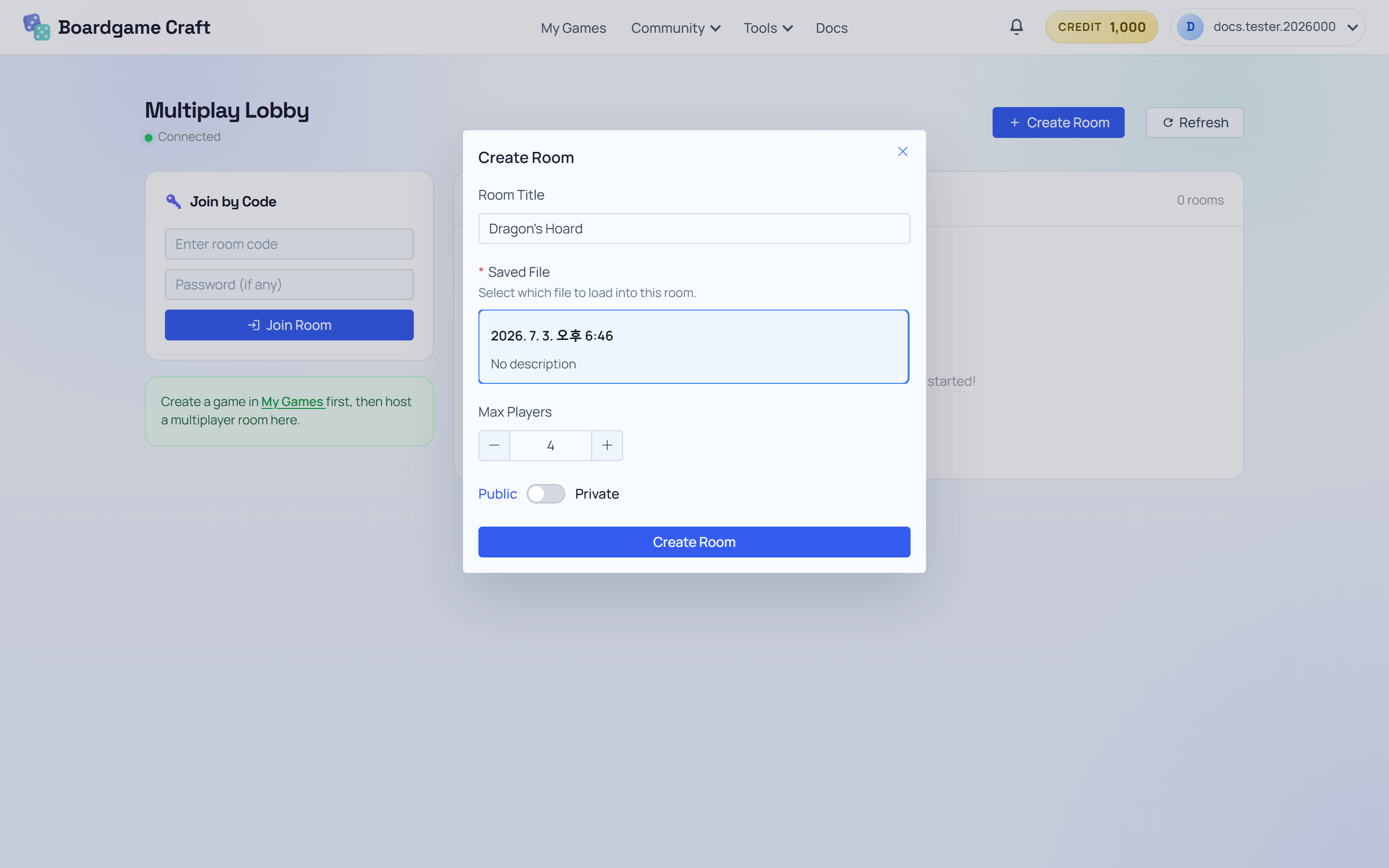
- Fill in the dialog:
- Room Title — what others see in the lobby.
- Saved File — which saved setup to load into the room.
- Max Players — from 2 up to 8.
- Private / Public — public rooms appear in the lobby list; private rooms can require a Password.
- Click Create Room. You're in!
Invite your friends
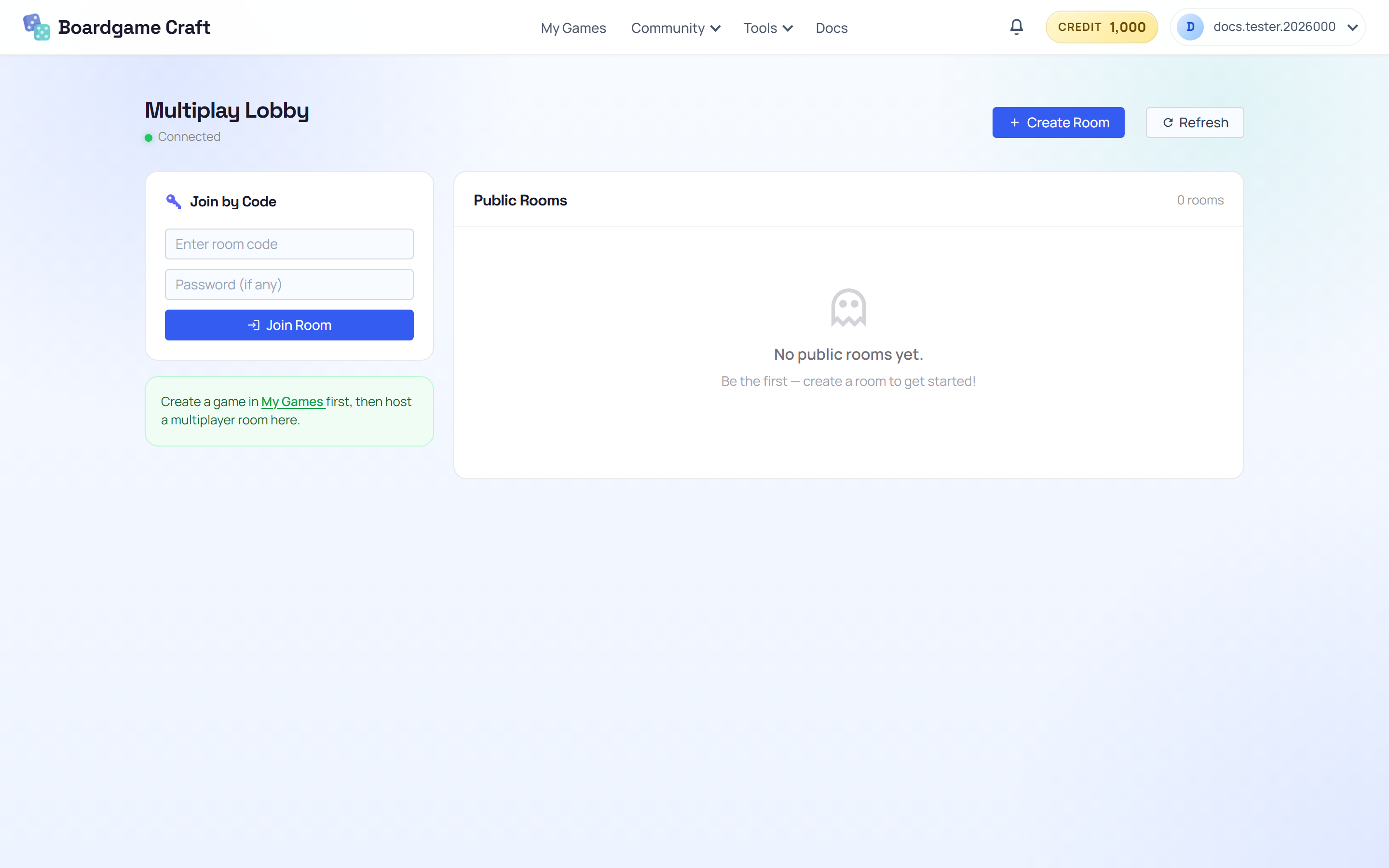
Friends can join in two ways:
- Room code — share your room's code. In the lobby, they type it into Join by Code (plus the password if your room has one) and click Join Room.
- Public rooms list — if your room is public, it shows up in the lobby with its name, host, and player count. They just click Join.
Playing together
Inside the room, everyone shares the same live table. When one player moves a card, rolls a die, or draws from a deck, everyone sees it happen in real time. Hand Zones stay private to their owners, so hidden-information games work as expected.
Playtesting with remote friends? Run a voice call alongside the game (Discord, Zoom, anything) — Boardgame Craft handles the table, your call handles the table talk.