%20suggest%20a%20game%20in%20play.%20Palette%20matches%20the%20product%20design%20tokens:%20sky%20500/600%20(%234E97CC/%2335789F),%20sky%20700%20(%232C617F),%20apricot%20accent%20(%23E8935E),%20warm%20white%20(%23FDFCF8).%20--%3e%3cdefs%3e%3clinearGradient%20id='bgc-table-top'%20x1='32'%20y1='6'%20x2='32'%20y2='58'%20gradientUnits='userSpaceOnUse'%3e%3cstop%20offset='0'%20stop-color='%234E97CC'/%3e%3cstop%20offset='1'%20stop-color='%2335789F'/%3e%3c/linearGradient%3e%3c/defs%3e%3c!--%20table%20depth%20--%3e%3crect%20x='13'%20y='17'%20width='38'%20height='38'%20rx='9'%20transform='rotate(45%2032%2036)'%20fill='%232C617F'/%3e%3c!--%20tabletop%20--%3e%3crect%20x='13'%20y='13'%20width='38'%20height='38'%20rx='9'%20transform='rotate(45%2032%2032)'%20fill='url(%23bgc-table-top)'/%3e%3c!--%20token%20pips%20--%3e%3ccircle%20cx='32'%20cy='23.5'%20r='5'%20fill='%23E8935E'/%3e%3ccircle%20cx='23.5'%20cy='35'%20r='5'%20fill='%23FDFCF8'/%3e%3ccircle%20cx='40.5'%20cy='35'%20r='5'%20fill='%23FDFCF8'/%3e%3c/svg%3e)
3D Simulator
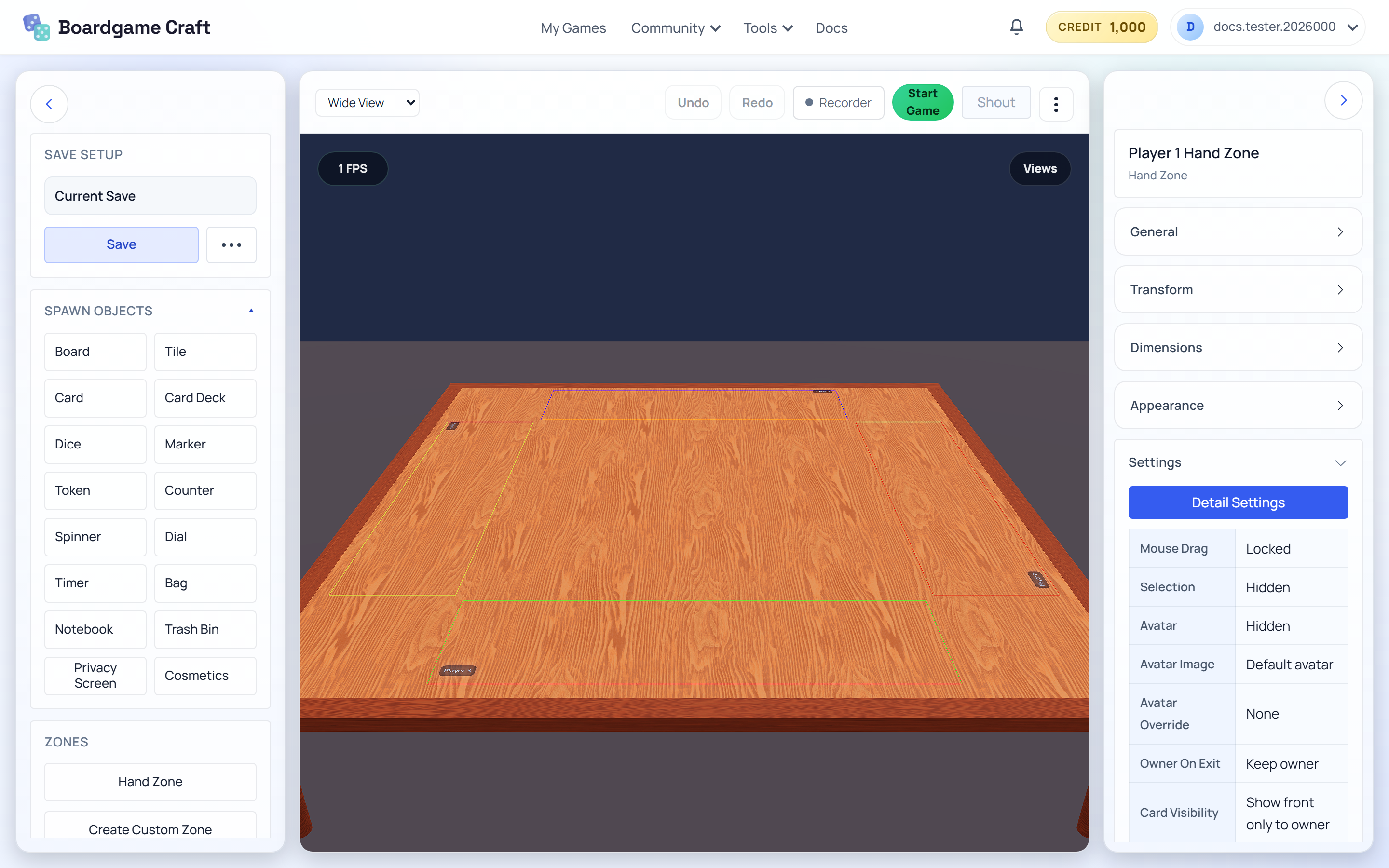
The simulator is your virtual game table. Spawn cards, dice, and tokens, arrange them in 3D, and save the setup for multiplayer sessions.
Open the simulator
Go to Projects and click Table Setup on a project card. The simulator opens with that game's table.
Add components
Expand Add Components on the left to open your toolbox. Click a type to add it to the table:
| Object | What it's for |
|---|---|
| Board / Tile | The play surface — game boards and map tiles. |
| Card / Card Deck | Single cards or a full deck you can draw and shuffle. |
| Dice | Rollable dice. |
| Marker / Token / Counter | Player pieces, resources, and score tracking. |
| Spinner / Dial / Bag / Timer | Special mechanics — spin, dial values, draw bags, timers. |
| Notebook / Trash Bin / Privacy Screen | Table utilities for notes, discards, and hidden info. |
Select and edit a component
After you add a component, select it on the table. Its inspector opens on the right. Use Edit Card Content or Edit Deck & Cards to change names, images, and card rows. Use Card Behavior or Deck Behavior for play interactions such as previews and drawing rules.
To edit several table components in one spreadsheet, expand Manage Components and open Edit All Components. This opens Component Data; it is separate from the reusable Card Deck Editor in the top Tools menu.
Play areas: hands and custom zones
- Hand Zone — a private area for a player's cards. Other players can't see what's inside.
- Custom Zone — mark out your own table regions, like a discard pile area or a battle zone.
Move the camera
Use the camera presets to jump between viewpoints: Wide View, Top View, and Angled View. You can also orbit and zoom the camera with your mouse to inspect the table from any angle.
Add your own 3D items
Expand Add Components and click Cosmetics to open your item inventory. It has three tabs:
- Uploaded by Me — GLB files you uploaded.
- Created by Me — items you generated in the 3D Item Studio.
- Purchased — items you bought on the Marketplace.
Pick an item and it spawns right onto your table.
Save your setup
The save panel keeps your whole table arrangement. Click Save to store it, or use Save As to keep multiple versions (like "2-player setup" and "4-player setup"). Load Save brings a stored setup back.
Multiplayer rooms load from your saved setups. Save before you head to the lobby, or your table changes won't be there.